Compliance Standards

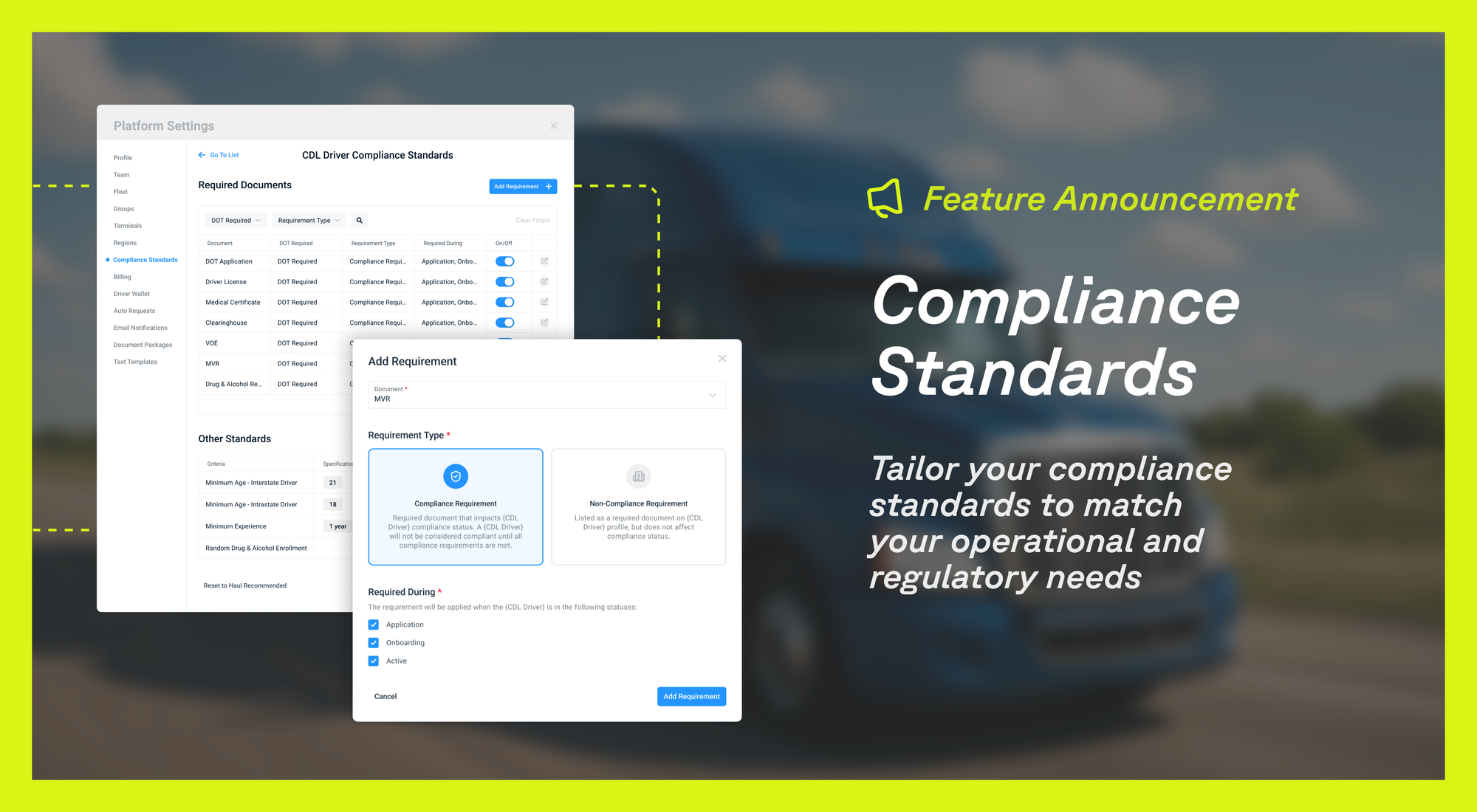
We’re excited to introduce Compliance Standards, giving fleets greater flexibility and control over how required documents are defined and how compliance status is calculated.
You can now configure document requirements by Driver Type (CDL, Non-CDL, Non-Driving Employee) and Asset Type (Truck, Trailer), and control which documents impact compliance versus those that do not impact compliance.
Importantly, this update does not change your fleet’s current compliance setup. Your existing requirements and compliance behavior remain the same. This enhancement gives you more control moving forward — allowing you to tailor compliance rules to match your operational and regulatory needs.
Note: Only Administrators have access to edit Compliance Standards. Other roles will have “Read Only” access and will not be able to make changes. You can manage User Settings by navigating to Platform Settings > Team.
In this guide, we’ll walk through how the new configuration works, how to make updates, and best practices for managing your compliance requirements effectively.
Compliance Requirements
A Compliance Requirement is a document that is required for a driver or asset to be considered compliant within the system. If a required document is missing or expired, the driver or asset will be marked Out of Compliance.
Compliance Requirements should represent documents that are essential to meeting your regulatory or company policy standards. These requirements directly impact compliance status and are used to determine whether a driver or asset is eligible to operate.
We strongly recommend that fleets do not disable DOT-required documents, as these are critical to maintaining regulatory compliance and audit readiness.
Non-Compliance Requirements
A Non-Compliance Requirement is a document that is tracked in the system but does not impact compliance status. While these documents may have expiration dates and generate alerts when nearing expiration or expired, they will not cause a driver or asset to be marked Out of Compliance.
Non-Compliance Requirements are useful for tracking operational, administrative, or company-specific documents that are important to monitor but do not need to block compliance status.
How to Configure:
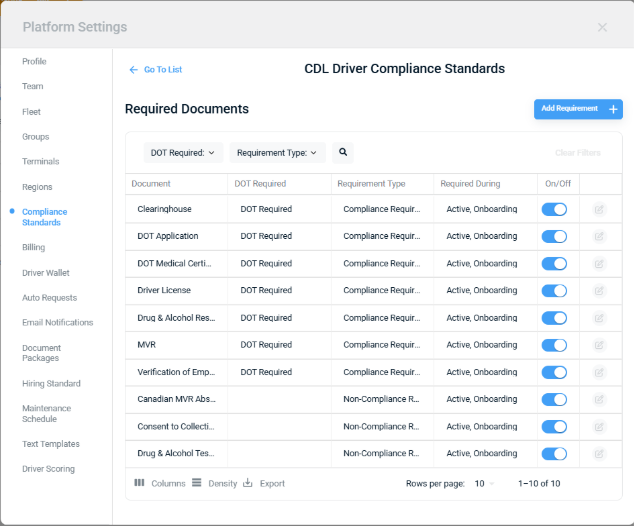
- To start configuring compliance your way, navigate to Platform Settings and select “Compliance Standards”.
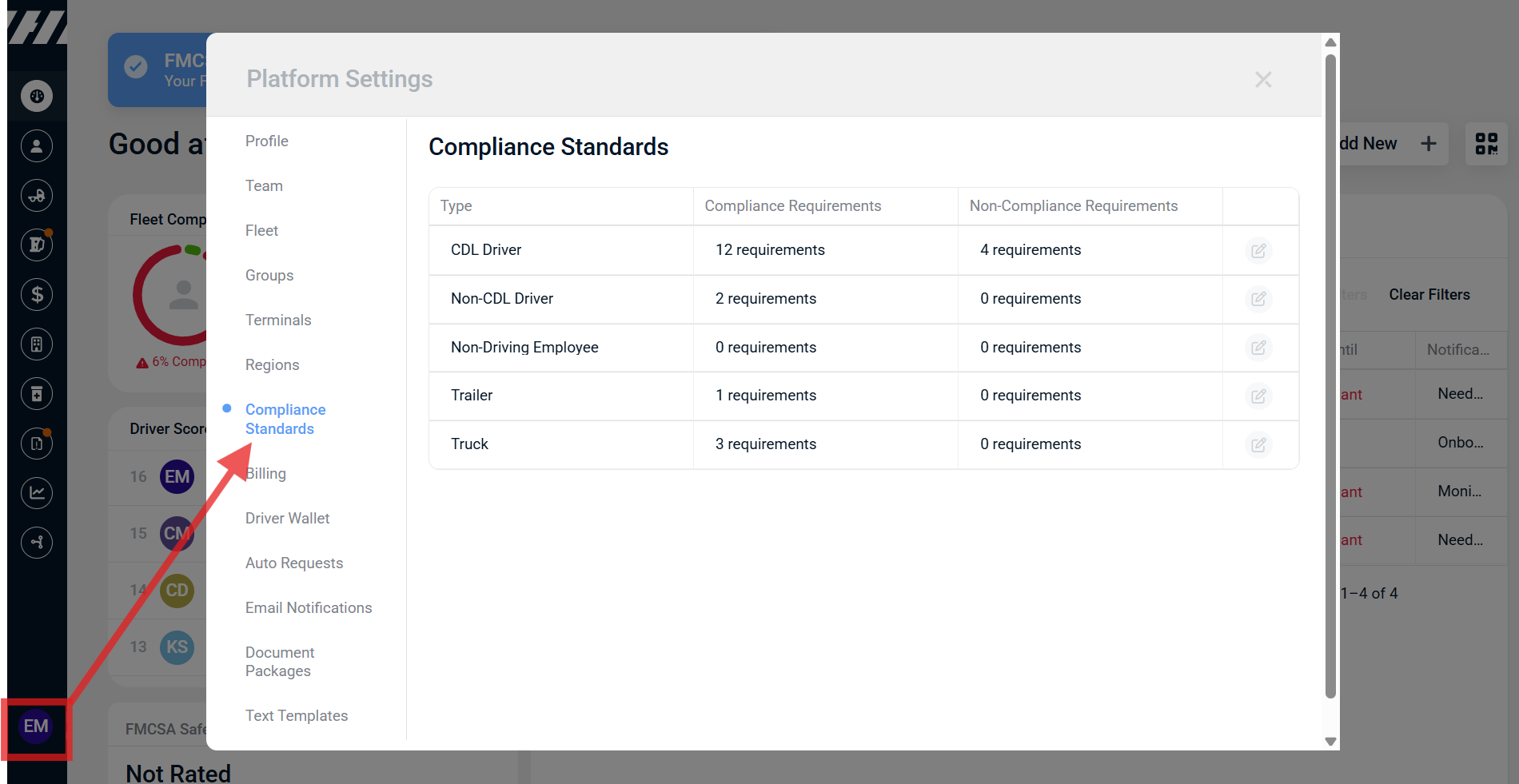
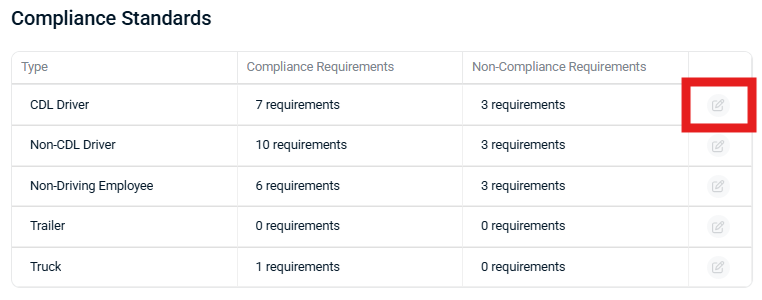
- Click the Pencil Icon on the Type you’d like to view/edit
From this screen, you can:
- Turn Off Requirements: Toggle the blue button for each Requirement. (Blue = on, Gray = Off)
- Edit Requirements: Click the Pencil Icon to Edit; make the document a “Compliance Requirement” or “Non-Compliance Requirement, and control which Statuses (Application, Onboarding, Active) this document applies to.
- Add Requirements: Click “Add Requirement” in the upper right corner; add additional documents to your list of Compliance or Non-Compliance Requirements.
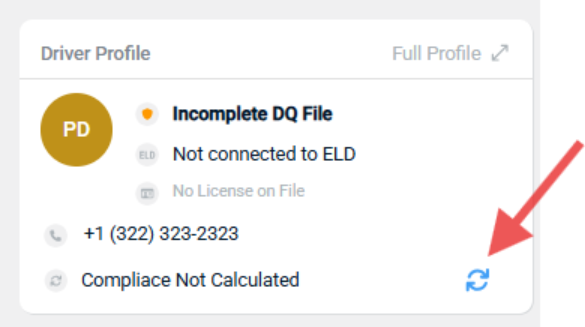
When a Requirement is turned on/off, added, or deleted, you will see these changes reflected in Driver and Equipment profiles within 24 hours. Alternatively, you can see these changes reflected immediately by navigating to the Driver or Equipment profile and clicking on the sync button.
If you have any additional questions or concerns, please reach out to support@haulcompliance.com.